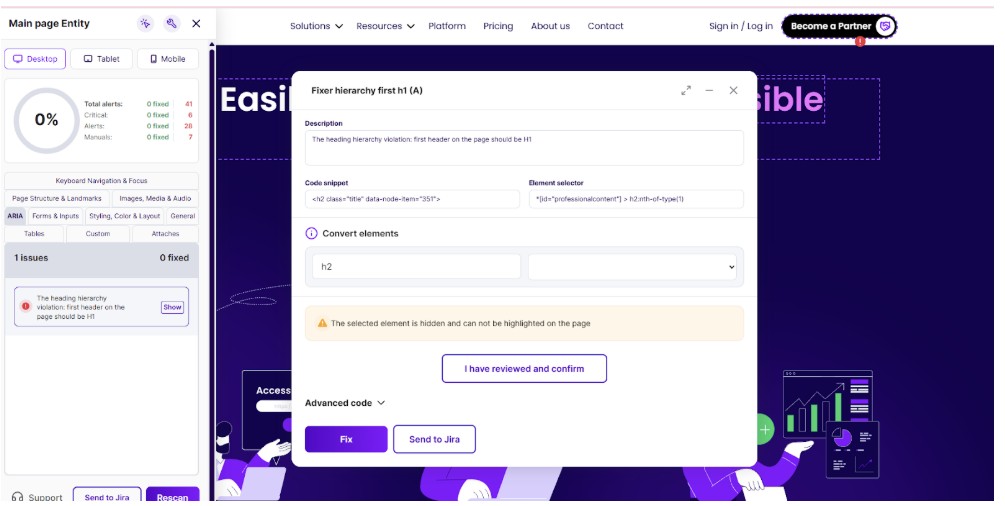
a) Scan the entity from the section called “Scanner” to generate an accessibility report for the required page.
b) Select the entity -> click on “3 dots” icon to view the list of options.
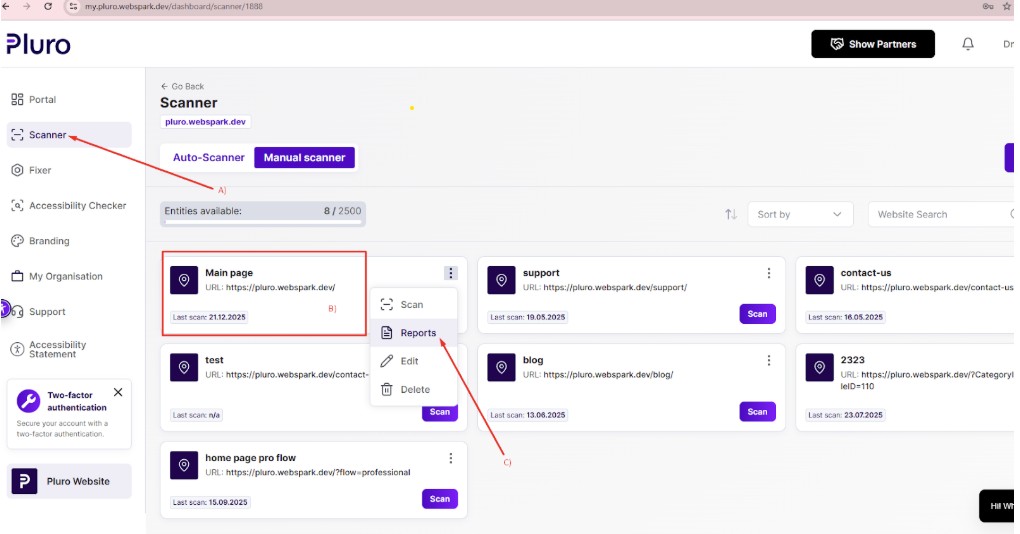
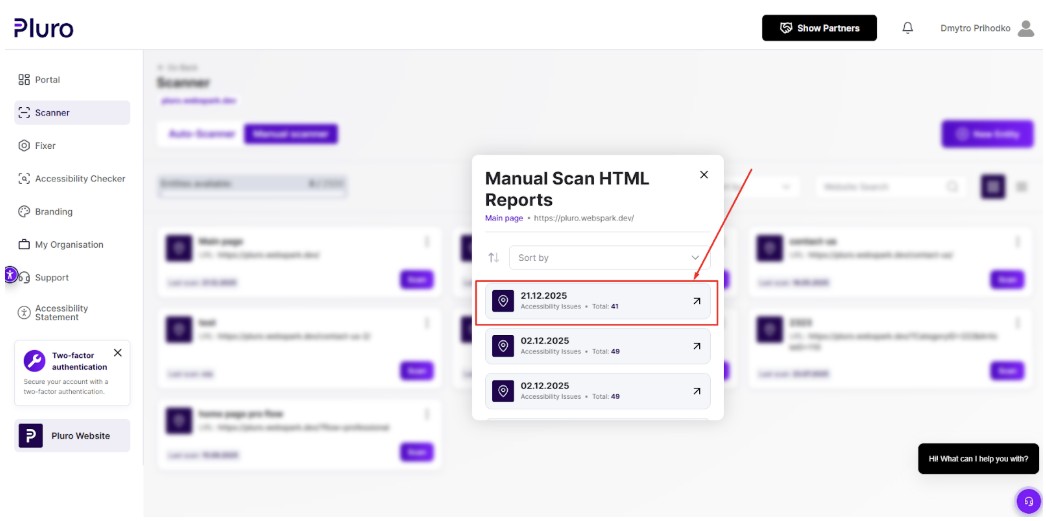
c) Find in the dropdown menu the point “Reports” and choose the needed HTML report from the list inside the pop-up to open a page with advanced details.
HTML report page and restrictions related to the Org Hub space
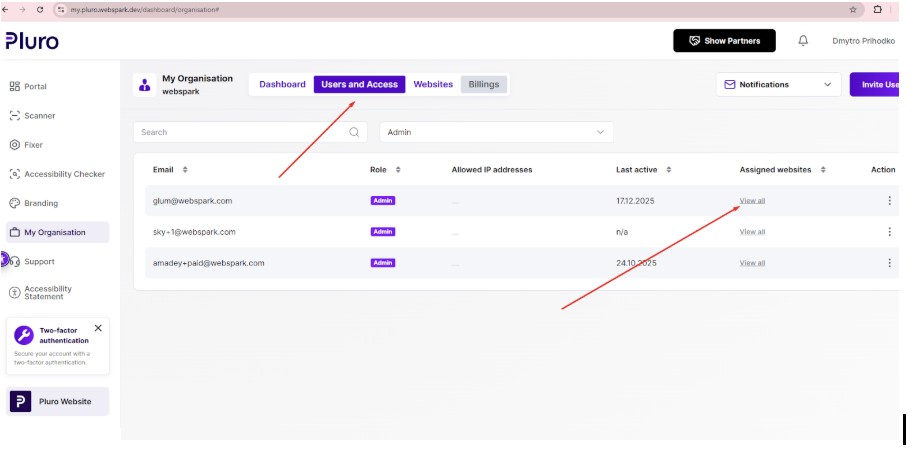
If the Org Hub is created and the user is a member of the Org Hub, the system applies custom limitations for interaction/manipulations with the HTML report page functionality. For example:
- All activities on the HTML report, like “Status” editing, usage of the “Assign to” feature and etc are available ONLY FOR Org Hub admins and Editors (Advisors) who are connected to the specified domain address.
- The Org Hub member with a role “Viewer” can check the information, but this user is not able to use the main features, except for data filtering/sorting on the page and information viewing.
- If the Org Hub member is not assigned to the specified domain address, this user won’t have access to the HTML report page of the required page.
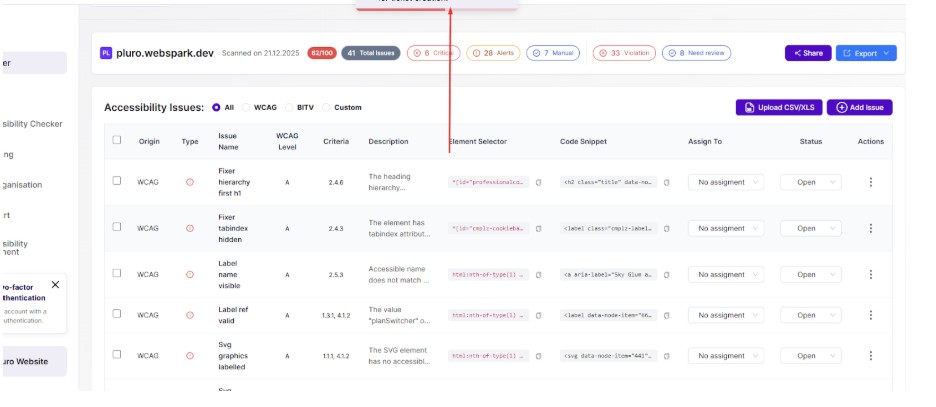
The main structure of the HTML report page:
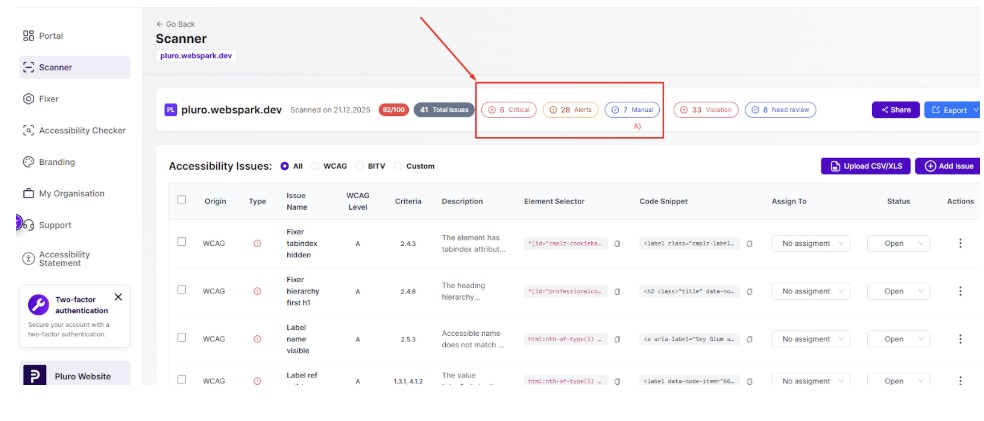
a) Main filter based on the type of the error: “Critical”, “Alerts” and “Manual” to filter the list of errors in the report and keep only the required ones.
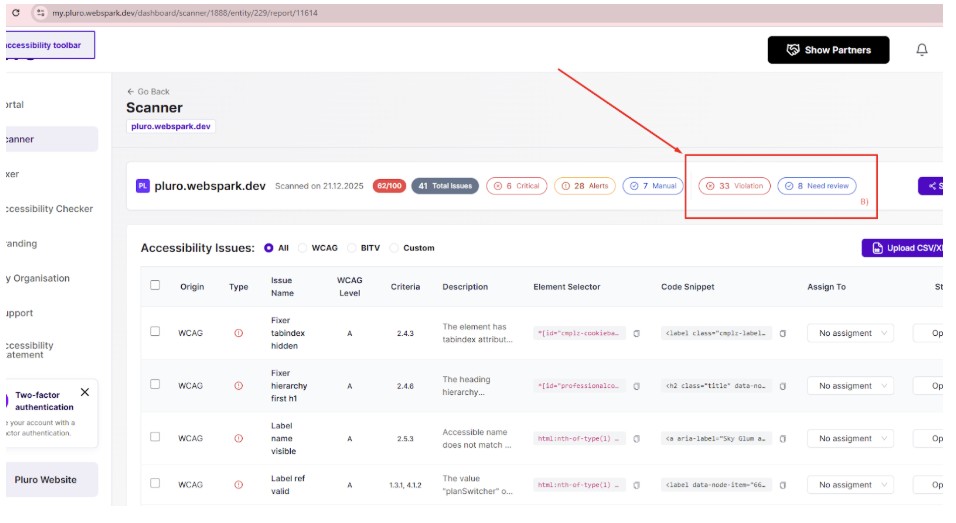
b) Additional filter based on the error weight: To define if it is an accessibility failure (“Violation”) or a potential accessibility (“Need review”) problem.
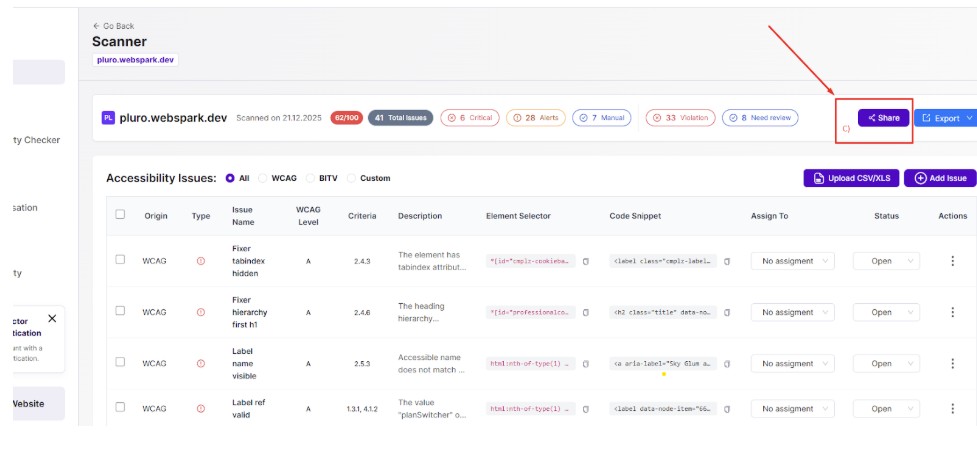
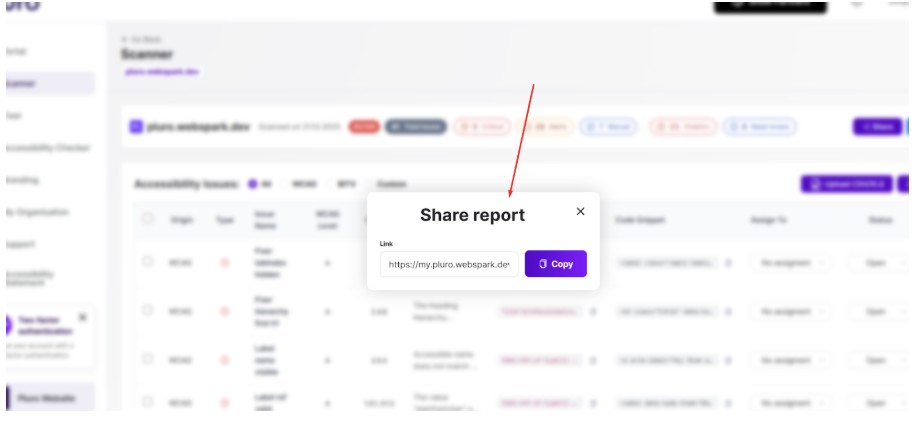
c) “Share” option: To generate a separate link to the HTML report page and send it to users for viewing, in case this user is not registered on MyPluro. The shared link is located on a separate domain page that is visible to everyone who received the link. But the shared report does not contain options to interact with the page and edit the data. Permissions for viewing are limited, and sensitive information is hidden.
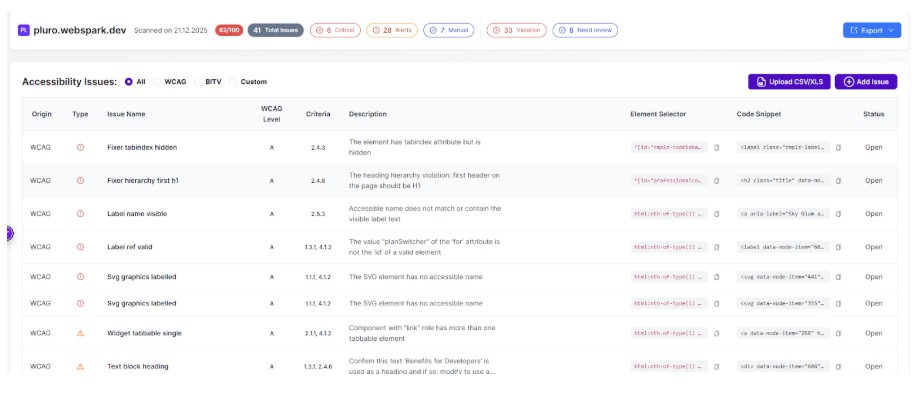
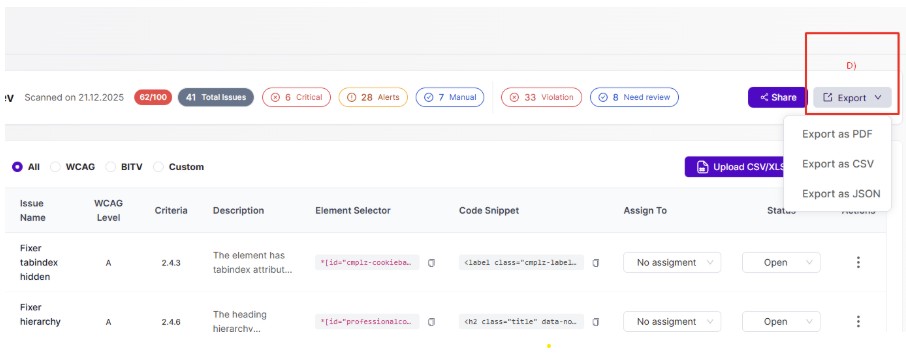
d) “Export” option: To convert the HTML report into:
- PDF file: In a tabular format with the list of all accessibility issues that are shown on the HTML report page and additional data for error detection on the page (entity).
- CSV files: With a format similar to an HTML report page.
- JSON file.
e) Inner filter based on the Accessibility standard/Library: Used to recognize the error on the client’s page. If the scanning was provided using all 3 libraries supported by the MyPluro service, the list of errors can be split into 3 criteria:
- WCAG errors: Recognized based on rules from this standard.
- BITV errors: German regulator with its own rules for accessibility flow.
- Custom errors: Specified rules created by the development team.
f) The button “Add error”: To create an advisor’s error manually. The error will be placed in the general list of accessibility issues, but marked as “Custom/Manual”, which means it was created by a human and not connected with the existing back-end functionality related to the scanning principles.
NOTE: If the custom error was added to the specified report, during the next scanning, when an actual report is formed, a previously generated error will be kept.
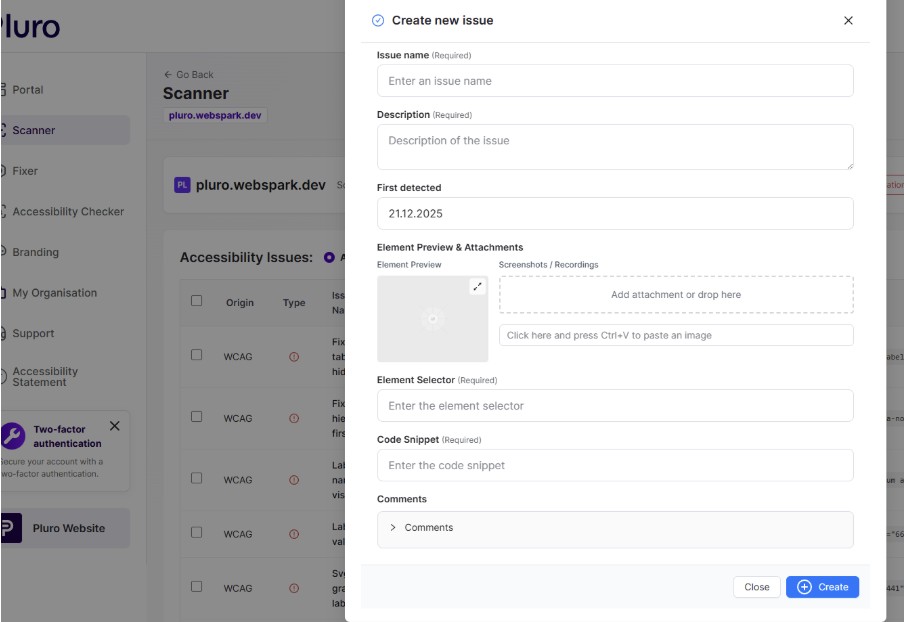
If the Org Hub editor or advisor wants to generate an accessibility error from scratch, they have to fill in the information about the error:
- Place the name of the custom error.
- Place a description that will describe the exact problem.
- Attach images if there is need.
- Add a selector and code snippet of the interface element that requires accessibility improvements.
- Add a “comment” as text (if there is a need – not mandatory).
NOTE: Only when the manual accessibility error is added, the editor/advisor can sync it with the Jira service for automatic Jira ticket creation.
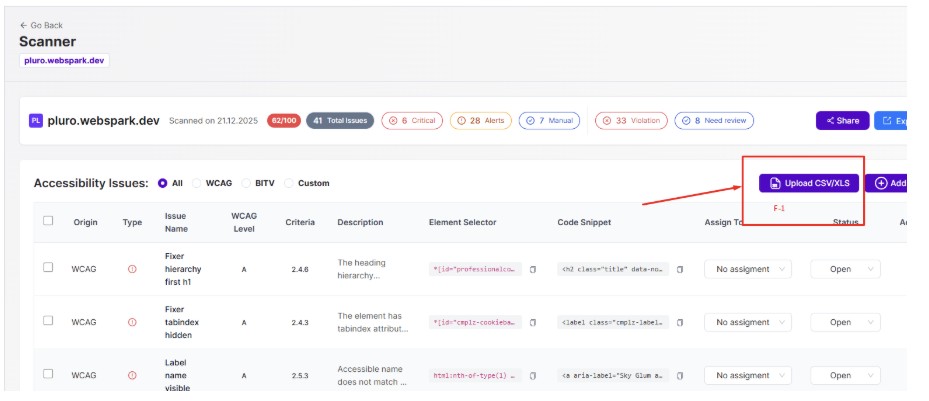
f-1) The button “Upload XLS/CSV”: For mass adding of custom accessibility errors created by the editor/advisor. This option is similar to a manual creation of the error described in point “f” but with the help of a CSV file, the advisor may upload several errors at the same time. The document with the list of errors for uploading has to be stored on a user’s local computer.
NOTE: The format of the CSV is strictly regulated and the advisor must follow the CSV document examples available for downloading on the HTML report page.
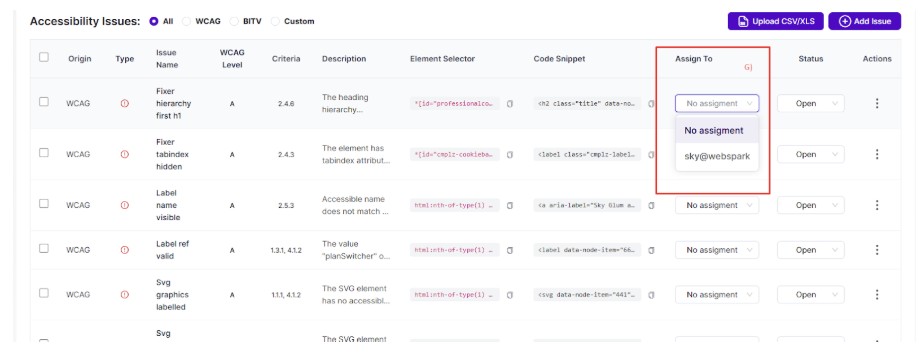
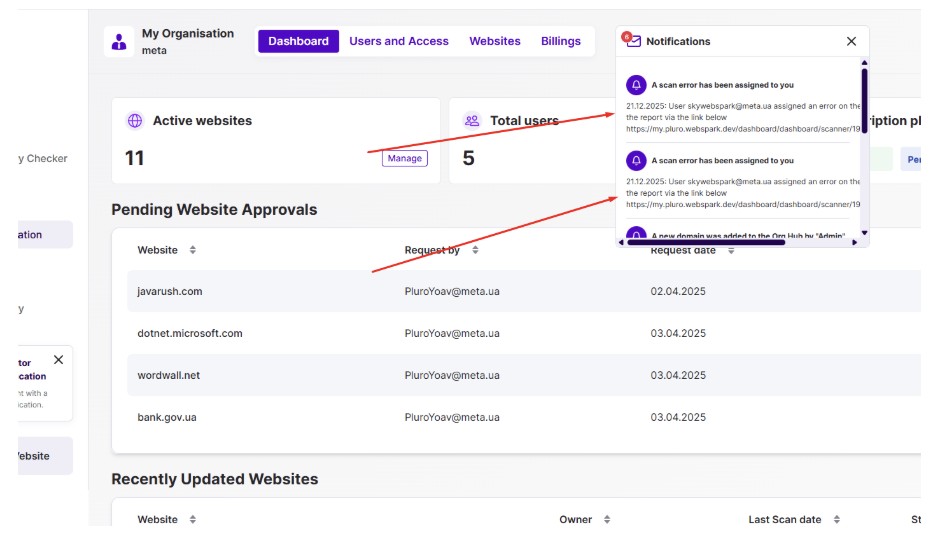
g) The “Assign to” option: Used to assign the specified error to the Org Hub Member. MyPluro customer who belongs to the Org Hub will get a notification message on the Org Hub screen (top notification panel) that the error was assigned to their email address/account by someone, and can use the link to the HTML report for the error viewing.
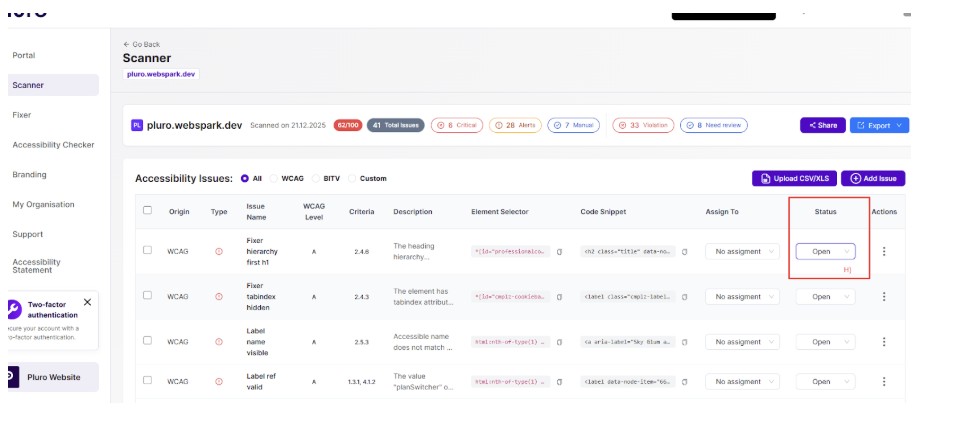
h) “Status”: Is an indicator for editors/advisors to make a required label for the specified error to understand what should be done with it: if this error can be ignored or requires attention. Or this error is still actual and has to be reviewed by the responsible specialist.
i) The menu “Actions” contains 4 options:
- Open details: Used to trigger a pop-up with detailed information about the error.
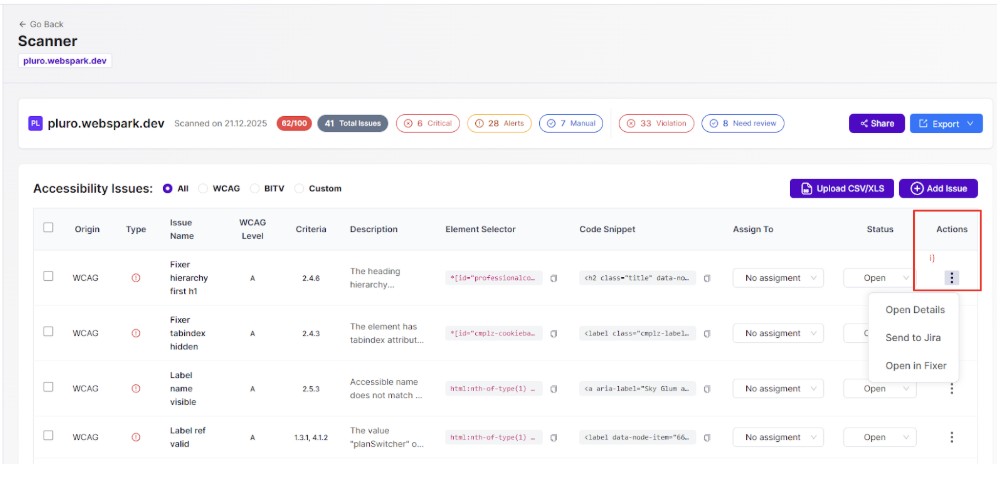
- Send to Jira: To create a ticket + subtickets in the client’s Jira board after the synchronization with the Atlassian service
. - Open in Fixer: By clicking on this option, the exact error (pop-up with advanced data) will be displayed on the Fixer screen, where the user can test different fixes and code edits to resolve the accessibility problem.