
Scanner & Reports
Open Accessibility Issue Details and Available Actions
This guide documents the Pluro workflow illustrated in the accompanying product screenshots. Available controls may vary by plan and product release.
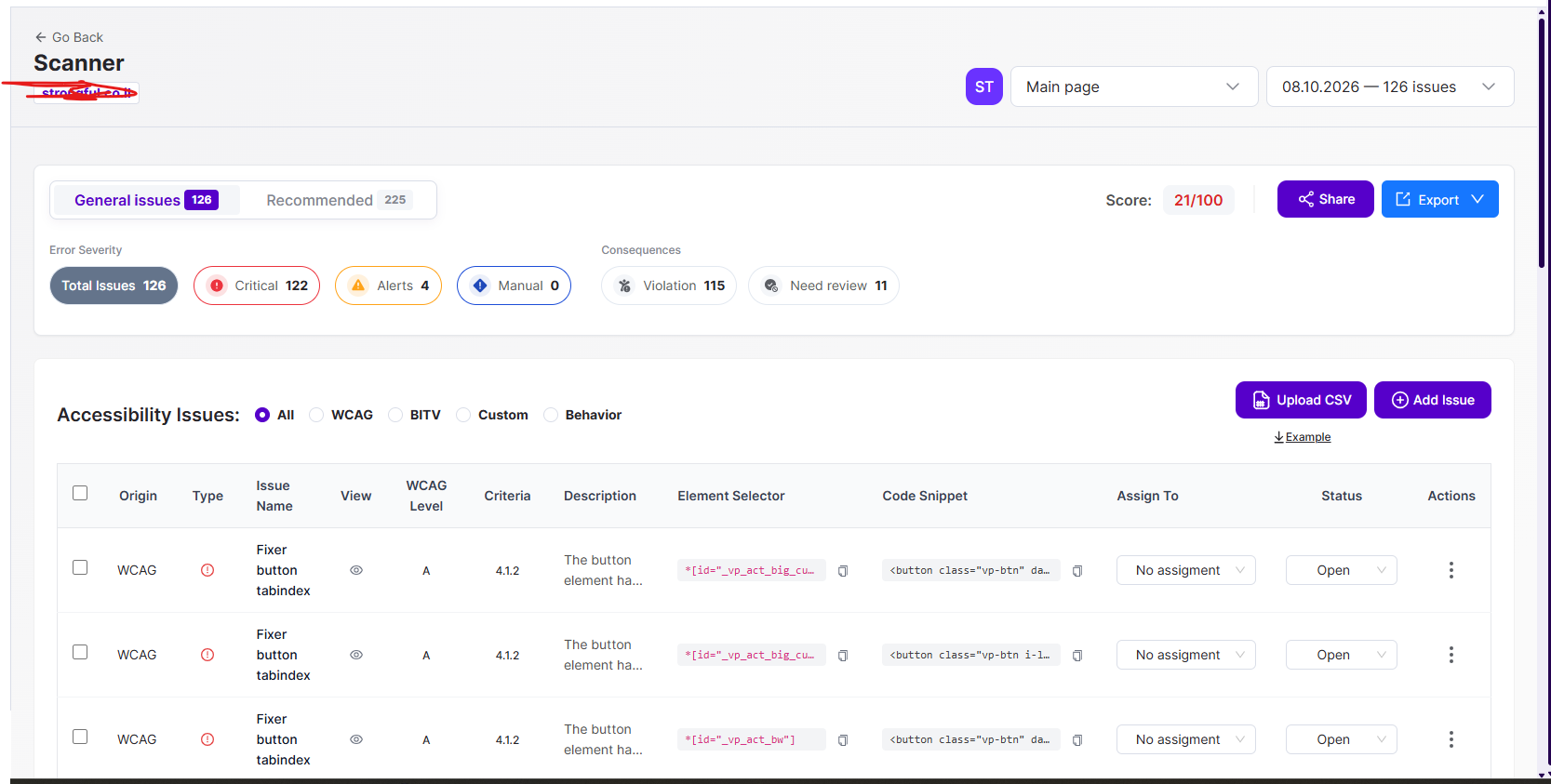
Actions menu
In the issues table, open the three-dot Actions menu for an individual finding. The screenshot shows Open Details, Send to Jira and Open in Fixer.
Open Details
The details dialog shows the issue title, WCAG guideline, description, first-detected date, guidance tabs and element evidence. Guidance sections include Why is it important?, Who is affected? and What to do?.
Send to Jira
If Jira synchronization is configured, choose Send to Jira to continue issue tracking there. Confirm the target project and issue creation result in your account.
Open in Fixer
Choose Open in Fixer when you need to inspect the selected element and consider a remediation. A suggested fix still requires testing and human verification.
Manage status
Where available, use the issue status control to track progress. Do not mark an issue resolved merely because a patch was generated.
Product documentation note: Review permission settings, current account functionality and the actual result before applying changes to a customer website.