
Scanner & Reports
Understand the Scanner Accessibility Results Screen
This guide documents the Pluro workflow illustrated in the accompanying product screenshots. Available controls may vary by plan and product release.
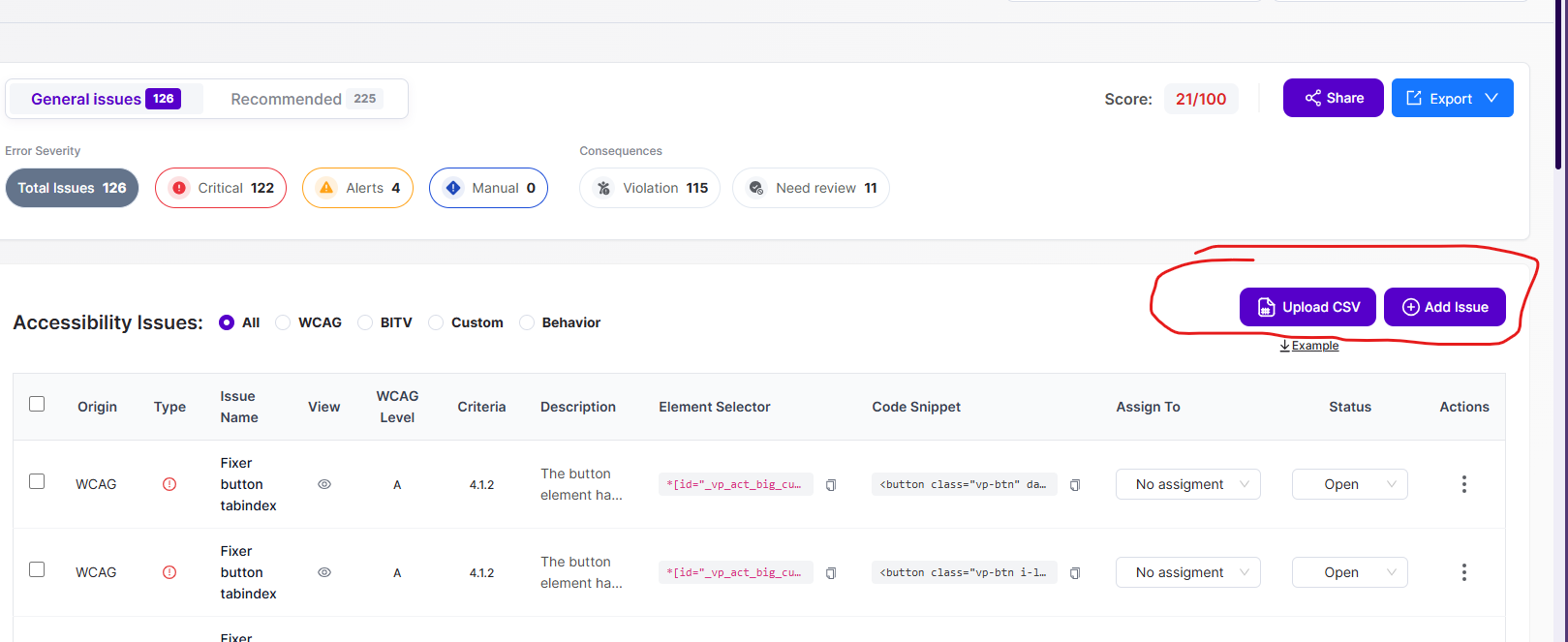
Results overview
The Scanner screen shows a page selector, scan-run selector and separate tabs for General issues and Recommended. In the example shown, the selected run displays a score and total issues.
Severity and consequences
The summary includes Total Issues, Critical, Alerts and Manual, plus consequence filters such as Violation and Need review. Interpret the counts in relation to the selected scan and filters; never treat them as interchangeable.
Issue table
The table displays Origin, Type, Issue Name, View, WCAG Level, Criteria, Description, Element Selector, Code Snippet, Assign To, Status and Actions. Use these fields to triage, assign and verify issues.
Filter and inspect
Use the issue-source filters (for example All, WCAG, BITV, Custom and Behavior) and select an issue row or its actions to inspect evidence. Recommendations and manual issues can require separate verification.
Next steps
Prioritize genuine user impact, review each finding, assign ownership, remediate, retest the affected interaction and retain traceable evidence of the result.
Product documentation note: Review permission settings, current account functionality and the actual result before applying changes to a customer website.