
Fixer & Remediation
Use the Fixer Element Picker (Pencil Tool)
This guide documents the Pluro workflow illustrated in the accompanying product screenshots. Available controls may vary by plan and product release.
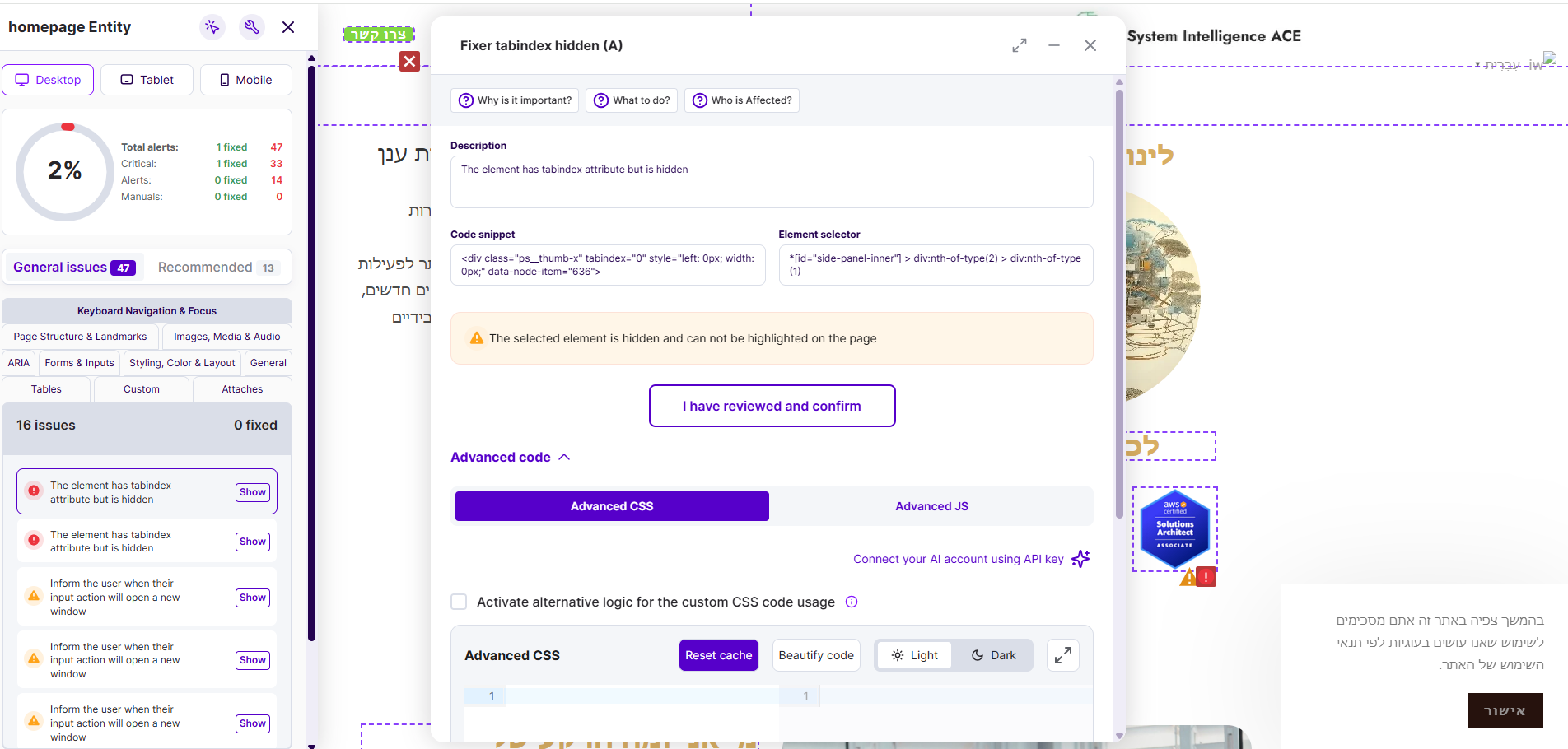
Locate an element
In the Fixer page preview, use the element-selection tool (the pencil/picker control) to target an element visually. The selected element can be highlighted and its selector captured.
Review element configuration
The Element configuration panel displays the element’s code snippet and selector. It offers focused controls such as Add new tooltip, Add new alt, Add new aria-label, Add landmarks, Add new tabindex and Add new aria expanded attribute.
Additional available controls
Other visible options include converting an element tag, applying an ARIA heading level, changing color contrast and configuring an accessibility statement link. Use only an operation appropriate to the element and its role.
Choose semantic fixes
Prefer native HTML semantics over adding tabindex or ARIA to non-interactive elements. When changing a tag or keyboard behavior, test all expected interactions, including Enter/Space activation and focus order.
Advanced code
For cases that cannot be addressed with the guided controls, the panel includes Advanced CSS and Advanced JS. Review selectors and code before saving, and test on the actual rendered page.
Product documentation note: Review permission settings, current account functionality and the actual result before applying changes to a customer website.