
Fixer & Remediation
Guide: Converting HTML Tags Dynamically with Pluro
Document the issue and its intended behavior before applying a change. Test corrections in the relevant page states, including keyboard interaction and dynamic content, before and after deployment.
Overview
Some websites generate elements dynamically after the page has loaded.
In these cases, accessibility fixes such as changing h2 to h1 or converting a div to a p must happen dynamically as well.
With Pluro, you can add custom JavaScript or CSS directly inside your domain configuration:
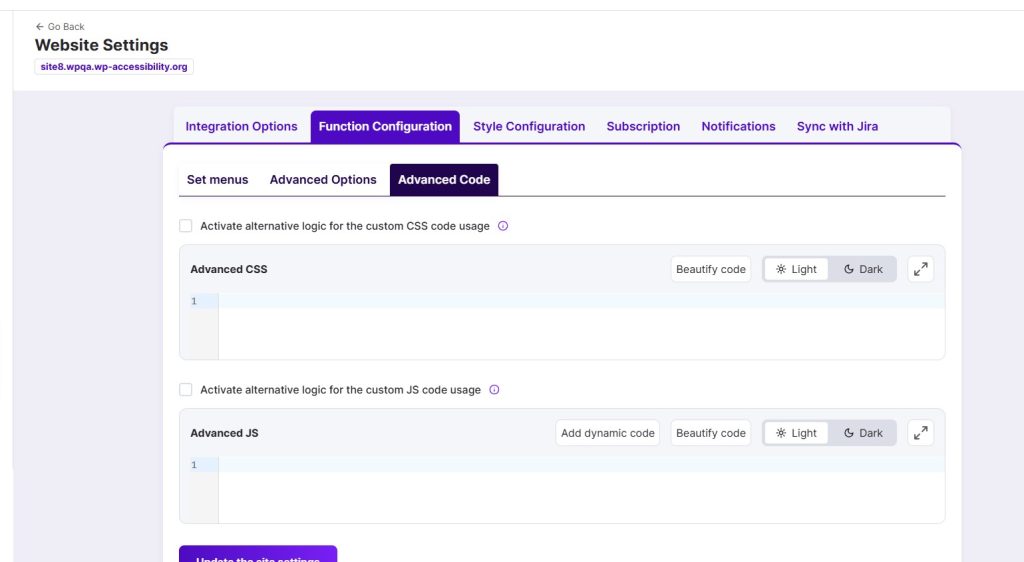
👉 Path:MyPluro → [Your Domain] → Settings → Function Configuration → Advanced Code
There you can insert either CSS or JavaScript code.
Step 1 – Define Conversion Rules
Use the convertElements array to configure which tags should be replaced.
const convertElements = [

{

"selector": ".showWishList", // CSS selector of the element

"from": "div",               // original tag

"to": "p" // new tag

},

{

"selector": "*[id="categories_73645"] > div:nth-of-type(1) > h2:nth-of-type(1)",

"from": "h2",

"to": "h1"

}

];
Step 2 – Add the Observer
The observer listens to a container on your page (e.g., #header_group1) and converts matching elements as soon as they are created.
window._uniToolbarObserver('#header_group1', function(action, target, node) {

if (action === 'add') {

convertElements.forEach(function (element) {

if (!element.from || !element.to || !element.selector) {

return;

}
const needConvert = $convertElement.is(element.selector);
const isProperTag = $convertElement.is(element.from);
const alreadyProper = $convertElement.is(element.to);if (!needConvert || !isProperTag || alreadyProper) {
console.log(‘skip or done’);
return;
}
console.log(‘convert once’);
$convertElement.replaceWith(function() {
const newEl = $(‘<‘ + element.to + ‘>’).html($(this).html());
// Copy all attributes
$.each(this.attributes, function() {
newEl.attr(this.name, this.value);
});
// Add tabindex if missing
if (!newEl.attr(‘tabindex’)) {
newEl.attr(‘tabindex’, ‘0’);
}
return newEl;
});
});
}
});
Step 3 – Choose the Correct Container
-
#header_group1in the example is the wrapper element (container) being observed. -
You must replace it with the container where your dynamic elements are actually created.
How to find it:
-
Open your site → Right-click → Inspect (DevTools).
-
Select the dynamic element.
-
Move up the DOM tree until you find a stable wrapper (
div,section, etc.) with a unique ID or class. -
Use that selector instead of
#header_group1.
Step 4 – Save in MyPluro
-
Go to:
MyPluro → [Your Domain] → Settings → Function Configuration → Advanced Code -
Switch to the JavaScript tab.
-
Paste the full code.
-
Save your configuration.
The script will now run automatically on your site through the Pluro system.
Step 5 – Test
-
Reload your site.
-
Open DevTools and confirm the tags are being converted (
h2 → h1,div → p, etc.). -
Check attributes are preserved.
-
Confirm
tabindex="0"is added when missing. -
Test keyboard navigation (TAB) to ensure accessibility is improved.
Notes
-
Always scope your selectors to avoid global replacements.
-
Changing tags may affect CSS or JS tied to the original element — test carefully.
-
Respect heading hierarchy (only one
h1per page). -
No
<script>tag is needed — this runs as part of Pluro’s injected accessibility system.
⚡ Summary:
To apply custom tag conversions dynamically:
-
Define your rules in
convertElements. -
Set the correct container in
_uniToolbarObserver. -
Paste the script under MyPluro → Domain → Settings → Function Configuration → Advanced Code → JavaScript.
-
Save and test.
Before you finish
- Confirm the UI labels against the installed version of Pluro.
- Test the complete workflow on an authorized site.
- Record the result and re-test after relevant changes.