
Developer Tools
How to Configure and Use the Pluro Behavior Scan Extension
Developer tools support investigation and validation of accessibility issues. Keep testing environments and recorded evidence free of personal information and credentials.
–pluro-purple: #7016e8;
–pluro-dark: #17034f;
–pluro-text: #253047;
–pluro-muted: #64748b;
–pluro-light: #f7f5ff;
–pluro-border: #ddd7f4;
–pluro-success: #087a43;
–pluro-warning-bg: #fff8e7;
–pluro-warning-border: #e8b94e;
–pluro-info-bg: #f2efff;
–pluro-info-border: #8c5bea;
width: min(100% – 32px, 1080px);
margin: 0 auto;
padding: 40px 0 70px;
color: var(–pluro-text);
font-family: Arial, Helvetica, sans-serif;
font-size: 17px;
line-height: 1.7;
}
.pluro-extension-guide * {
box-sizing: border-box;
}
.pluro-extension-guide a {
color: #5b0fc9;
text-decoration: underline;
text-underline-offset: 3px;
}
.pluro-extension-guide a:hover {
color: #370681;
}
.pluro-extension-guide a:focus-visible,
.pluro-extension-guide button:focus-visible {
outline: 3px solid #ffbf47;
outline-offset: 4px;
}
.pluro-guide-hero {
position: relative;
overflow: hidden;
padding: 52px;
margin-bottom: 40px;
border-radius: 28px;
background:
radial-gradient(circle at 90% 10%, rgba(162, 93, 255, 0.55), transparent 35%),
linear-gradient(135deg, #13024f 0%, #4310a8 58%, #741ae8 100%);
color: #fff;
box-shadow: 0 24px 60px rgba(39, 9, 100, 0.22);
}
.pluro-guide-hero::after {
content: “”;
position: absolute;
right: -80px;
bottom: -100px;
width: 310px;
height: 310px;
border-radius: 50%;
border: 60px solid rgba(255, 255, 255, 0.07);
pointer-events: none;
}
.pluro-guide-eyebrow {
display: inline-flex;
align-items: center;
gap: 10px;
margin: 0 0 18px;
padding: 8px 14px;
border: 1px solid rgba(255, 255, 255, 0.32);
border-radius: 999px;
background: rgba(255, 255, 255, 0.1);
color: #fff;
font-size: 14px;
font-weight: 700;
letter-spacing: 0.04em;
text-transform: uppercase;
}
.pluro-guide-hero h1 {
position: relative;
z-index: 1;
max-width: 820px;
margin: 0 0 20px;
color: #fff;
font-size: clamp(38px, 6vw, 68px);
line-height: 1.04;
letter-spacing: -0.045em;
font-weight: 800;
}
.pluro-guide-hero p {
position: relative;
z-index: 1;
max-width: 780px;
margin: 0;
color: rgba(255, 255, 255, 0.9);
font-size: 20px;
line-height: 1.65;
}
.pluro-guide-summary {
display: grid;
grid-template-columns: repeat(4, minmax(0, 1fr));
gap: 16px;
margin: 0 0 48px;
padding: 0;
list-style: none;
}
.pluro-guide-summary li {
min-height: 150px;
padding: 24px;
border: 1px solid var(–pluro-border);
border-radius: 20px;
background: #fff;
box-shadow: 0 12px 34px rgba(28, 16, 66, 0.07);
}
.pluro-guide-summary-number {
display: flex;
align-items: center;
justify-content: center;
width: 38px;
height: 38px;
margin-bottom: 18px;
border-radius: 12px;
background: var(–pluro-light);
color: var(–pluro-purple);
font-weight: 800;
}
.pluro-guide-summary strong {
display: block;
margin-bottom: 6px;
color: var(–pluro-dark);
font-size: 17px;
line-height: 1.35;
}
.pluro-guide-summary span {
display: block;
color: var(–pluro-muted);
font-size: 14px;
line-height: 1.5;
}
.pluro-guide-toc {
margin: 0 0 48px;
padding: 30px;
border: 1px solid var(–pluro-border);
border-radius: 22px;
background: var(–pluro-light);
}
.pluro-guide-toc h2 {
margin: 0 0 18px;
color: var(–pluro-dark);
font-size: 25px;
line-height: 1.25;
}
.pluro-guide-toc ol {
margin: 0;
padding-left: 24px;
}
.pluro-guide-toc li {
margin: 8px 0;
}
.pluro-guide-section {
margin: 0 0 68px;
scroll-margin-top: 30px;
}
.pluro-guide-section-header {
display: grid;
grid-template-columns: auto minmax(0, 1fr);
gap: 18px;
align-items: start;
margin-bottom: 26px;
}
.pluro-guide-section-number {
display: flex;
align-items: center;
justify-content: center;
width: 50px;
height: 50px;
border-radius: 16px;
background: linear-gradient(135deg, #6a11cb, #8f34ff);
color: #fff;
font-size: 21px;
font-weight: 800;
box-shadow: 0 10px 24px rgba(112, 22, 232, 0.25);
}
.pluro-guide-section h2 {
margin: 0 0 8px;
color: var(–pluro-dark);
font-size: clamp(30px, 4vw, 42px);
line-height: 1.12;
letter-spacing: -0.025em;
}
.pluro-guide-section-intro {
margin: 0;
color: var(–pluro-muted);
font-size: 18px;
}
.pluro-guide-step {
margin: 0 0 24px;
padding: 28px;
border: 1px solid #e5e1ef;
border-radius: 20px;
background: #fff;
box-shadow: 0 10px 30px rgba(28, 16, 66, 0.055);
}
.pluro-guide-step h3 {
margin: 0 0 12px;
color: var(–pluro-dark);
font-size: 23px;
line-height: 1.3;
}
.pluro-guide-step p:last-child,
.pluro-guide-step ul:last-child,
.pluro-guide-step ol:last-child {
margin-bottom: 0;
}
.pluro-extension-guide ul,
.pluro-extension-guide ol {
padding-left: 24px;
}
.pluro-extension-guide li {
margin: 7px 0;
}
.pluro-guide-status-grid {
display: grid;
grid-template-columns: repeat(3, minmax(0, 1fr));
gap: 14px;
margin: 22px 0 0;
}
.pluro-guide-status {
padding: 18px;
border: 1px solid #cae9da;
border-radius: 16px;
background: #f1fbf6;
}
.pluro-guide-status strong {
display: block;
margin-bottom: 4px;
color: #075c35;
}
.pluro-guide-status span {
color: #386a54;
font-size: 14px;
}
.pluro-guide-callout {
margin: 24px 0;
padding: 22px 24px;
border-left: 5px solid var(–pluro-info-border);
border-radius: 14px;
background: var(–pluro-info-bg);
}
.pluro-guide-callout strong {
display: block;
margin-bottom: 6px;
color: var(–pluro-dark);
}
.pluro-guide-callout-warning {
border-left-color: var(–pluro-warning-border);
background: var(–pluro-warning-bg);
}
.pluro-guide-image {
margin: 30px 0 40px;
padding: 14px;
border: 1px solid #ded8eb;
border-radius: 22px;
background: #fff;
box-shadow: 0 18px 45px rgba(28, 16, 66, 0.1);
}
.pluro-guide-image img {
display: block;
width: 100%;
height: auto;
border-radius: 14px;
}
.pluro-guide-image figcaption {
padding: 14px 8px 4px;
color: var(–pluro-muted);
font-size: 14px;
line-height: 1.5;
text-align: center;
}
.pluro-guide-image-placeholder {
display: flex;
align-items: center;
justify-content: center;
min-height: 330px;
padding: 30px;
border: 2px dashed #a78bda;
border-radius: 14px;
background:
linear-gradient(135deg, rgba(113, 22, 232, 0.04), rgba(113, 22, 232, 0.1));
color: #5420a4;
font-weight: 700;
text-align: center;
}
.pluro-guide-flow {
display: flex;
flex-wrap: wrap;
gap: 10px;
align-items: center;
margin: 22px 0;
}
.pluro-guide-flow span {
padding: 10px 14px;
border: 1px solid var(–pluro-border);
border-radius: 999px;
background: #fff;
color: var(–pluro-dark);
font-size: 14px;
font-weight: 700;
}
.pluro-guide-flow b {
color: var(–pluro-purple);
font-size: 20px;
}
.pluro-guide-code {
display: block;
overflow-x: auto;
margin: 15px 0;
padding: 15px 18px;
border-radius: 12px;
background: #16052f;
color: #f1eaff;
font-family: Consolas, Monaco, monospace;
font-size: 15px;
direction: ltr;
text-align: left;
white-space: nowrap;
}
.pluro-guide-results-grid {
display: grid;
grid-template-columns: repeat(2, minmax(0, 1fr));
gap: 18px;
margin-top: 28px;
}
.pluro-guide-result-card {
padding: 26px;
border: 1px solid var(–pluro-border);
border-radius: 20px;
background: #fff;
}
.pluro-guide-result-card h3 {
margin: 0 0 10px;
color: var(–pluro-dark);
font-size: 22px;
}
.pluro-guide-result-card p {
margin: 0;
color: var(–pluro-muted);
}
.pluro-guide-checklist {
margin: 28px 0;
padding: 30px;
border-radius: 22px;
background: #14033c;
color: #fff;
}
.pluro-guide-checklist h3 {
margin: 0 0 18px;
color: #fff;
font-size: 25px;
}
.pluro-guide-checklist ol {
margin: 0;
}
.pluro-guide-checklist li {
margin: 10px 0;
color: rgba(255, 255, 255, 0.9);
}
.pluro-guide-troubleshooting details {
margin-bottom: 14px;
border: 1px solid var(–pluro-border);
border-radius: 16px;
background: #fff;
}
.pluro-guide-troubleshooting summary {
cursor: pointer;
padding: 20px 22px;
color: var(–pluro-dark);
font-weight: 700;
}
.pluro-guide-troubleshooting details[open] summary {
border-bottom: 1px solid var(–pluro-border);
}
.pluro-guide-troubleshooting-content {
padding: 4px 22px 22px;
}
.pluro-guide-footer {
padding: 34px;
border-radius: 24px;
background: linear-gradient(135deg, #f2edff, #fbfaff);
text-align: center;
}
.pluro-guide-footer h2 {
margin: 0 0 10px;
color: var(–pluro-dark);
font-size: 30px;
}
.pluro-guide-footer p {
max-width: 720px;
margin: 0 auto;
color: var(–pluro-muted);
}
@media (max-width: 860px) {
.pluro-guide-summary {
grid-template-columns: repeat(2, minmax(0, 1fr));
}
.pluro-guide-status-grid,
.pluro-guide-results-grid {
grid-template-columns: 1fr;
}
.pluro-guide-hero {
padding: 38px 28px;
}
}
@media (max-width: 560px) {
.pluro-extension-guide {
width: min(100% – 20px, 1080px);
padding-top: 20px;
font-size: 16px;
}
.pluro-guide-summary {
grid-template-columns: 1fr;
}
.pluro-guide-section-header {
grid-template-columns: 1fr;
}
.pluro-guide-section-number {
width: 44px;
height: 44px;
}
.pluro-guide-step,
.pluro-guide-toc,
.pluro-guide-checklist,
.pluro-guide-footer {
padding: 22px;
}
.pluro-guide-image {
padding: 8px;
border-radius: 16px;
}
.pluro-guide-image-placeholder {
min-height: 220px;
}
}
@media (prefers-reduced-motion: reduce) {
.pluro-extension-guide *,
.pluro-extension-guide *::before,
.pluro-extension-guide *::after {
scroll-behavior: auto !important;
transition: none !important;
animation: none !important;
}
}
to MyPluro, validate a licensed domain, record a user flow, and review
accessibility findings that static scans may miss.
- 1
Create an API Key
Generate a secure Extension API Key inside MyPluro. - 2
Connect the Extension
Paste the key into the Pluro Chrome DevTools extension. - 3
Validate the Domain
Confirm that the current page is licensed and authorized. - 4
Record and Review
Capture a user flow and review results, timeline, and evidence.
API Key Configuration
Create a dedicated Extension API Key in MyPluro before using the
Behavior Scan extension.
Step 1: Open the Extension Key page
Log in to your MyPluro account and navigate to:
Account Configs → Extension Key
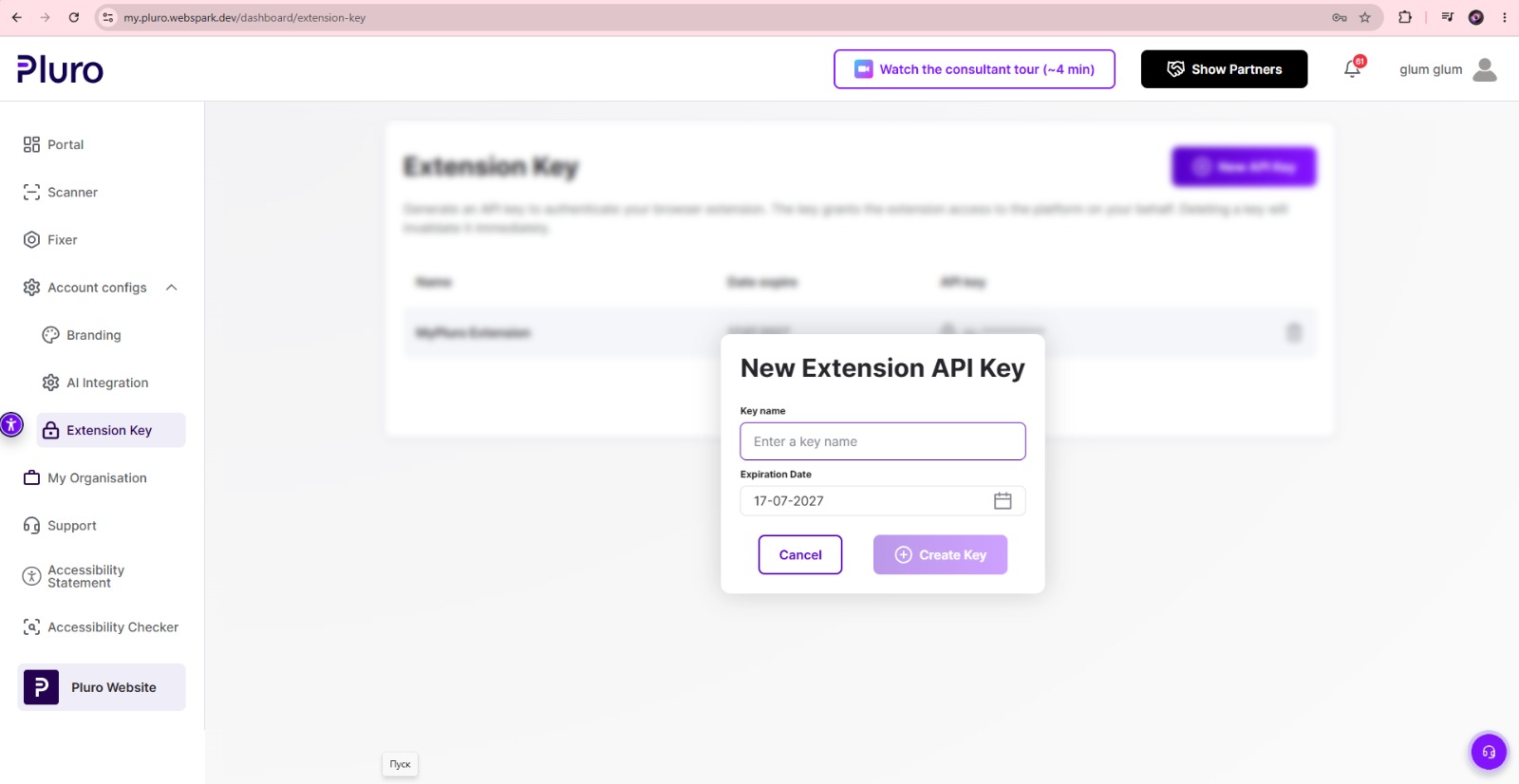
Step 2: Create a new API key
Select New API Key.
In the dialog:
- Enter a clear key name, such as MyPluro Extension.
- Select an expiration date.
- Select Create Key.
Step 3: Copy and securely store the key
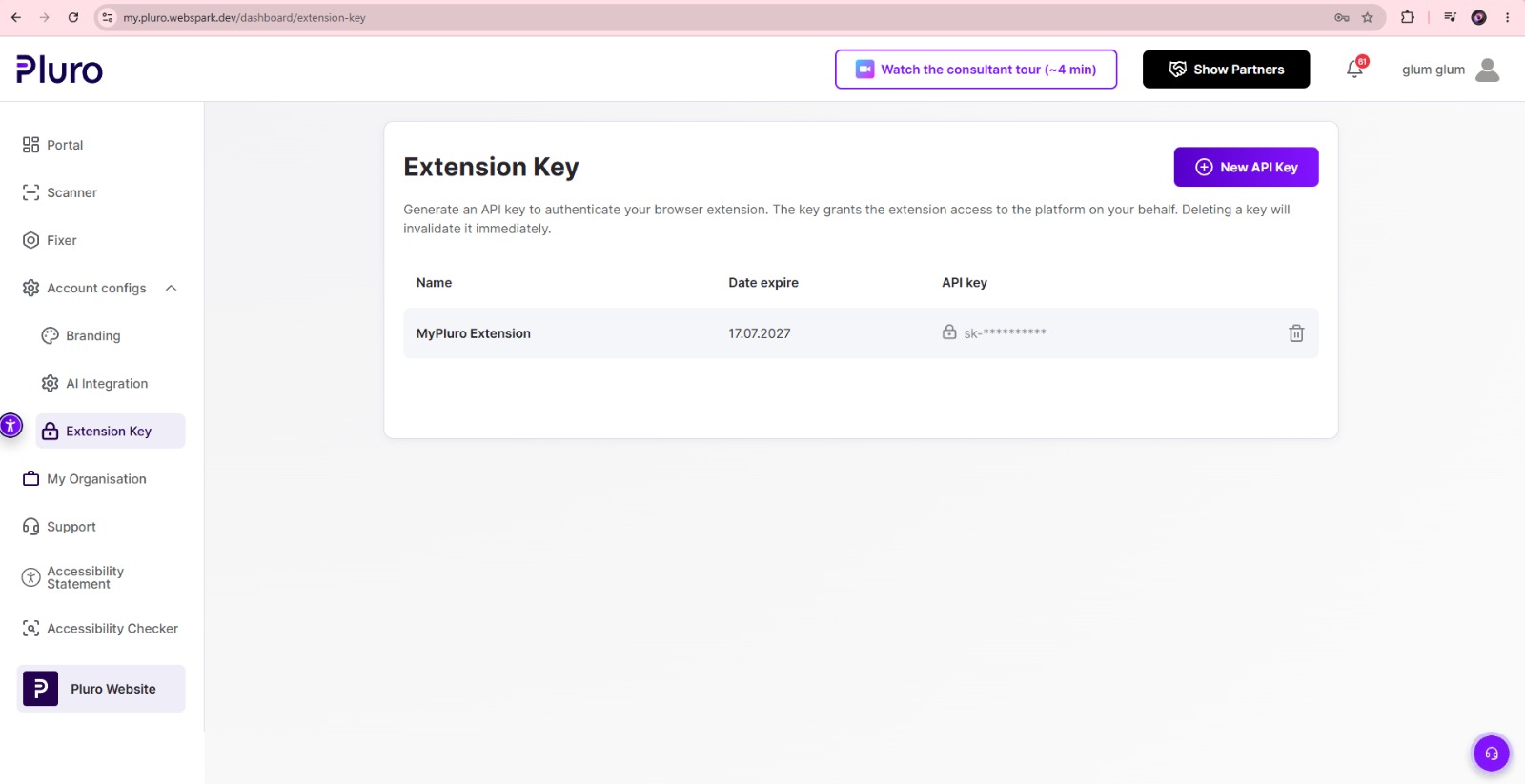
The newly created key appears in the Extension Key list. Copy the
complete key when it is generated and store it securely.
The API key allows the extension to connect to MyPluro on your behalf.
Deleting the key in MyPluro immediately invalidates it.
Connect the Extension to MyPluro
Add the generated key to the Pluro panel inside Chrome DevTools.
Step 1: Open Chrome DevTools
Open the website you want to test and launch Chrome DevTools:
- Press F12.
- Press Ctrl + Shift + I on Windows.
- Press Command + Option + I on macOS.
- Right-click the page and select Inspect.
Select the Pluro tab in Chrome DevTools.
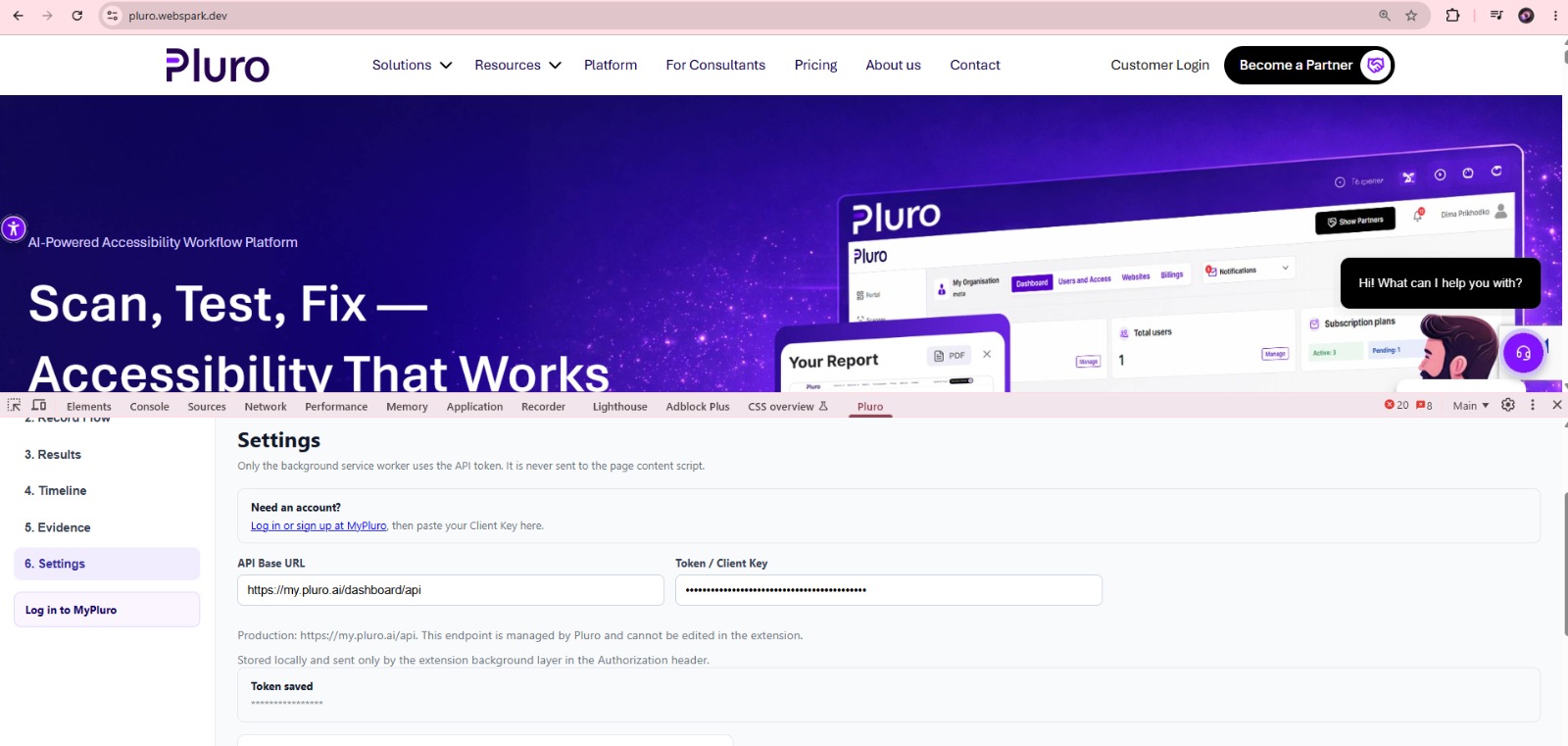
Step 2: Open Settings
In the extension navigation, select:
6. Settings
Step 3: Paste the API key
Paste the key into the Token / Client Key field.
The production API endpoint is managed by Pluro:
https://my.pluro.ai/dashboard/api
The API Base URL is fixed in the production extension and cannot be
edited.
Step 4: Confirm the connection
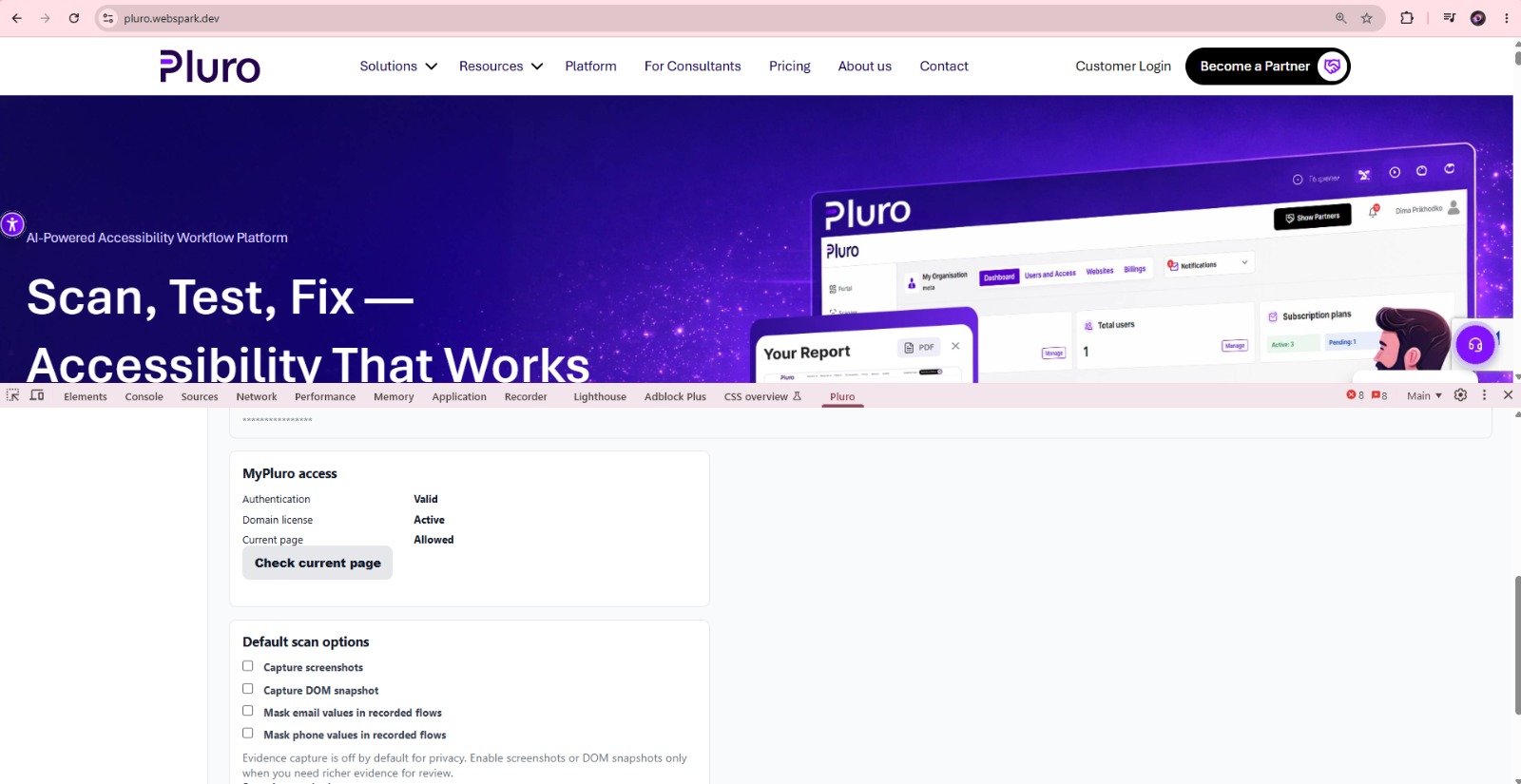
After the key is saved, the extension displays the current MyPluro
access status.
Valid
Active
Allowed
Validate the Domain
The current website must be registered and licensed in MyPluro
before a Behavior Scan can run.
Step 1: Open the page you want to test
Navigate to the exact website page on which you want to record the
interaction flow.
Step 2: Check the current page
In Settings, select
Check current page.
The extension verifies:
- Whether the API key is valid.
- Whether the domain has an active MyPluro license.
- Whether the current page is authorized for scanning.
Successful validation
When validation succeeds, the extension displays:
- Success
- Page authorized by MyPluro
- The validated domain name
You should also see the following confirmation:
Authentication valid. Domain licensed. Current page is registered
and ready.
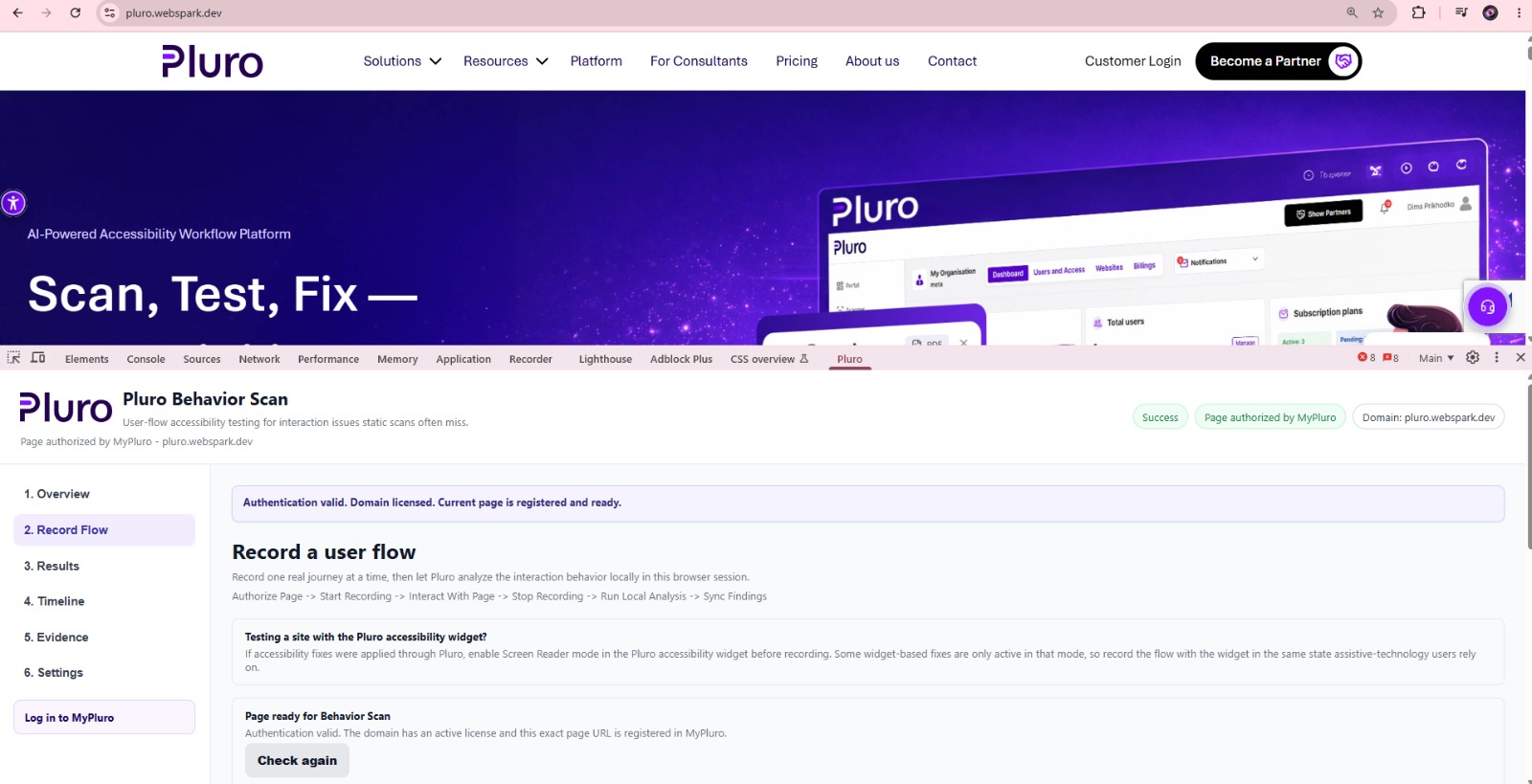
MyPluro organization is being used, and the domain has an active
license. Also check differences between the www, non-www, and subdomain
versions of the website.
Record and Analyze a User Flow
Record a real interaction and let Pluro analyze the behavior that
occurred during the browser session.
→
Start Recording
→
Interact With Page
→
Stop Recording
→
Run Local Analysis
→
Review Results
Step 1: Prepare the page
- Open the page at the beginning of the user journey.
- Close unnecessary dialogs or browser panels.
- Choose one specific interaction flow to test.
- Enable any accessibility mode required for the test.
When testing a website that uses the Pluro accessibility widget,
enable the relevant widget mode before recording. Some applied fixes
may only be active when Screen Reader Support is enabled.
Step 2: Start recording
Select Start Recording and perform the flow naturally.
Example interactions include:
- Navigating with Tab and Shift + Tab.
- Opening and closing a menu.
- Opening a modal dialog.
- Completing and submitting a form.
- Triggering validation errors.
- Expanding an accordion.
- Activating dynamically updated content.
- Using the Pluro accessibility widget.
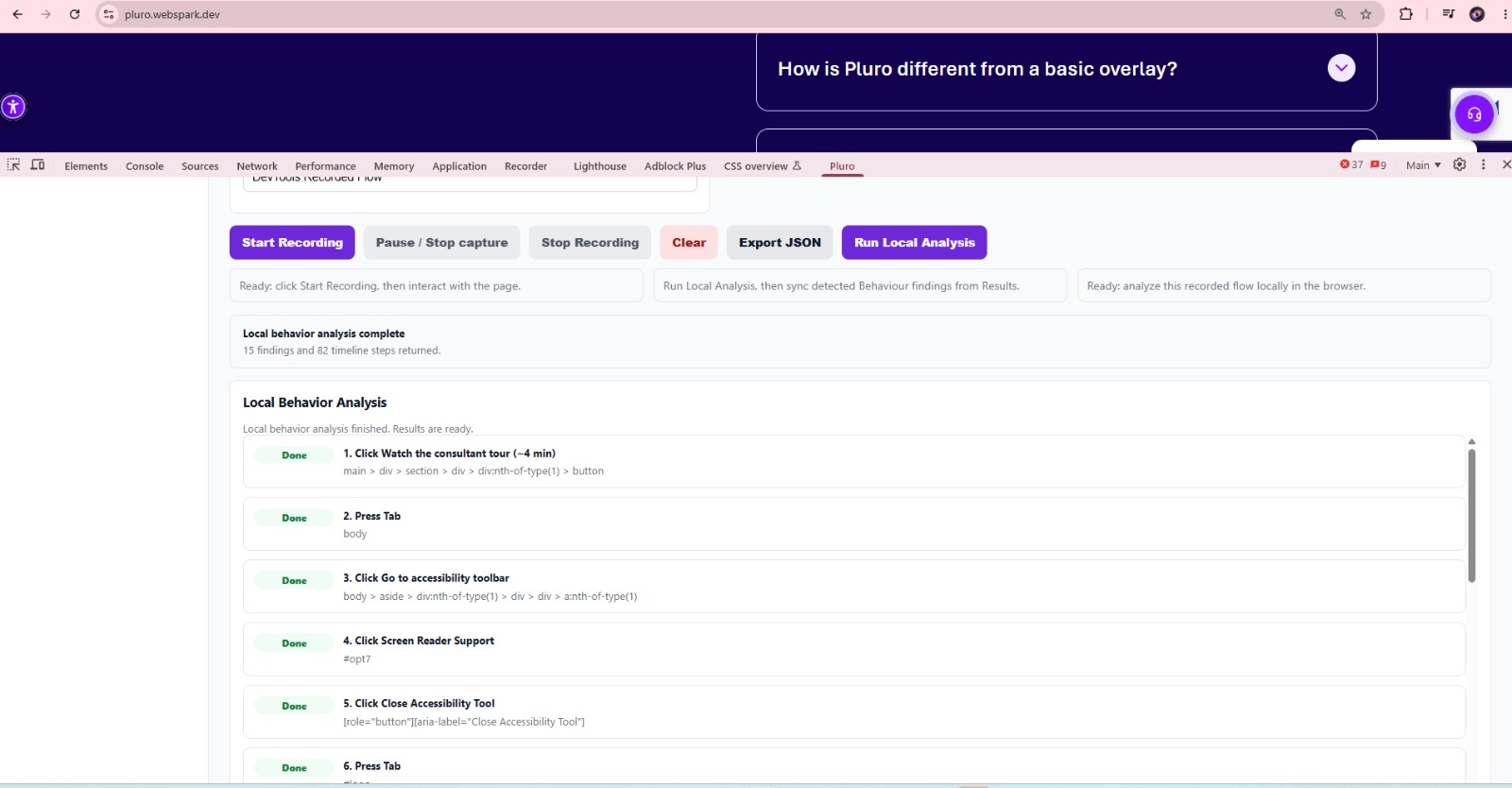
Step 3: Use the recording controls
- Start Recording — begins capturing the user flow.
- Pause / Stop Capture — temporarily pauses event capture.
- Stop Recording — ends the recording session.
- Clear — removes the current recording.
- Export JSON — exports the captured flow.
- Run Local Analysis — analyzes the recorded interaction.
Step 4: Run Local Analysis
After stopping the recording, select
Run Local Analysis.
The extension displays the number of:
- Accessibility findings
- Timeline steps
- Recorded actions
Understand the Results Interface
The captured session is organized into results, timeline, and
supporting evidence.
Overview
Displays authentication, domain authorization, scan readiness,
recording status, analysis status, and general finding counts.
Record Flow
Provides the recording controls and shows the captured interaction
sequence, including actions and relevant page elements.
Results
Shows accessibility findings related to keyboard behavior, focus,
modals, forms, errors, and dynamic content.
Timeline
Presents the recorded interaction in chronological order to help
reviewers understand and reproduce each issue.
Evidence
Provides supporting information such as selectors, events, focus
changes, DOM details, screenshots, and recorded page state.
Settings
Controls authentication, page authorization, evidence capture, and
privacy-related recording options.
Common findings
Depending on the recorded flow, Pluro may identify issues involving:
- Keyboard navigation
- Unexpected focus movement
- Keyboard dead ends
- Modal focus management
- Form validation
- Error announcements
- Dynamic content updates
- Status messages
- Accessible names
- Controls that cannot be operated correctly
Evidence and Privacy Settings
Control the level of evidence captured during each recording.
Default scan options
Available options may include:
- Capture screenshots
- Capture DOM snapshot
- Mask email values in recorded flows
- Mask phone values in recorded flows
Screenshots and DOM snapshots should only be enabled when richer
evidence is required.
Recommended Testing Process
Test one focused user journey at a time for clearer and more useful
results.
Example: Test a contact form
- Open the contact form.
- Start recording.
- Navigate through the form using the keyboard.
- Submit the form with required fields left empty.
- Review how validation errors are presented.
- Stop recording.
- Run Local Analysis.
- Review Results, Timeline, and Evidence.
Create a separate recording for another journey, such as opening a
modal, navigating a menu, operating an accordion, or using a dynamic
interface.
Troubleshooting
Review these common checks when the extension cannot connect,
authorize, or record correctly.
Authentication is invalid
- Generate a new Extension API Key.
- Confirm that the complete key was copied.
- Verify that the key has not expired or been deleted.
- Remove the saved key and enter it again.
Domain license is inactive
- Confirm that the domain exists in MyPluro.
- Verify that its subscription or license is active.
- Confirm that you are using the correct organization.
Current page is not allowed
- Confirm that the URL belongs to the registered domain.
- Check differences between www and non-www addresses.
- Check whether the page uses another subdomain.
- Select Check current page again.
No events are recorded
- Confirm that recording has started.
- Keep Chrome DevTools open during the session.
- Interact with the page after selecting Start Recording.
- Reload and authorize the page again when necessary.
No findings are displayed
A scan with no findings does not confirm that the entire page is
accessible. It means that no supported behavior issues were
detected in the specific recorded flow.
Combine Behavior Scan with:
- Automated scanning
- Manual accessibility testing
- Keyboard testing
- Screen-reader testing
- Expert review
Before you finish
- Confirm the UI labels against the installed version of Pluro.
- Test the complete workflow on an authorized site.
- Record the result and re-test after relevant changes.