
Scanner & Reports
Export Accessibility Reports as PDF, CSV or JSON
This guide documents the Pluro workflow illustrated in the accompanying product screenshots. Available controls may vary by plan and product release.
Available export formats
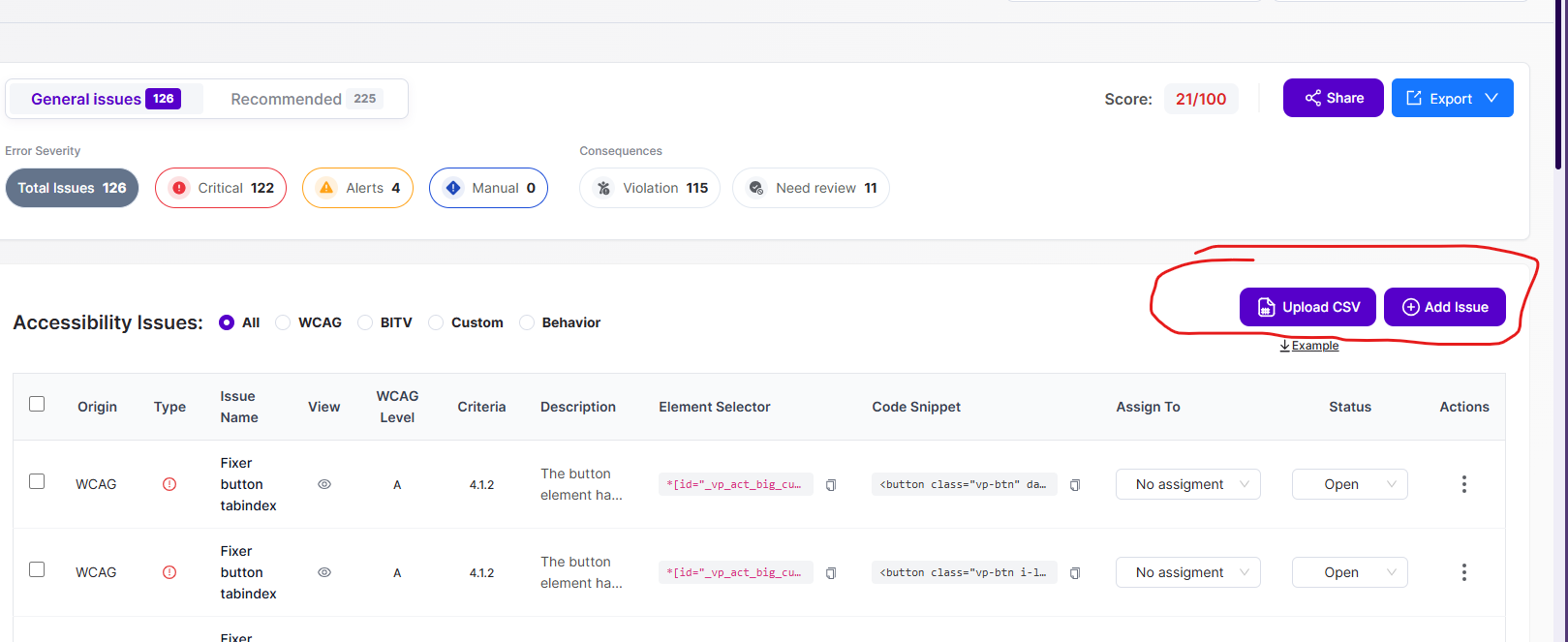
On the Scanner results screen, select Export. The visible menu includes Export as PDF, Export as CSV, and Export as JSON.
Choose the format
PDF is useful for a shareable document; CSV supports spreadsheet review; JSON supports structured downstream processing. Use the format supported by your reporting or issue-management workflow.
Confirm filters and scope
Before exporting, confirm the selected page and scan run, issue source, severity filters and whether you are reviewing General issues or Recommended findings. Check the exported file to confirm which items it contains.
Customer-facing notes
Include the scan date, page scope, and a statement that manual verification may still be needed. Be cautious about embedding sensitive selectors, HTML snippets or customer URLs in broadly distributed exports.
Product documentation note: Review permission settings, current account functionality and the actual result before applying changes to a customer website.