
Fixer & Remediation
Work with Pluro Fixer and Validate Remediation
This guide documents the Pluro workflow illustrated in the accompanying product screenshots. Available controls may vary by plan and product release.
What Fixer is for
Fixer supports inspecting accessibility findings in the context of a real page and applying targeted remediation where appropriate. It complements source-code fixes and human testing.
Start from an issue
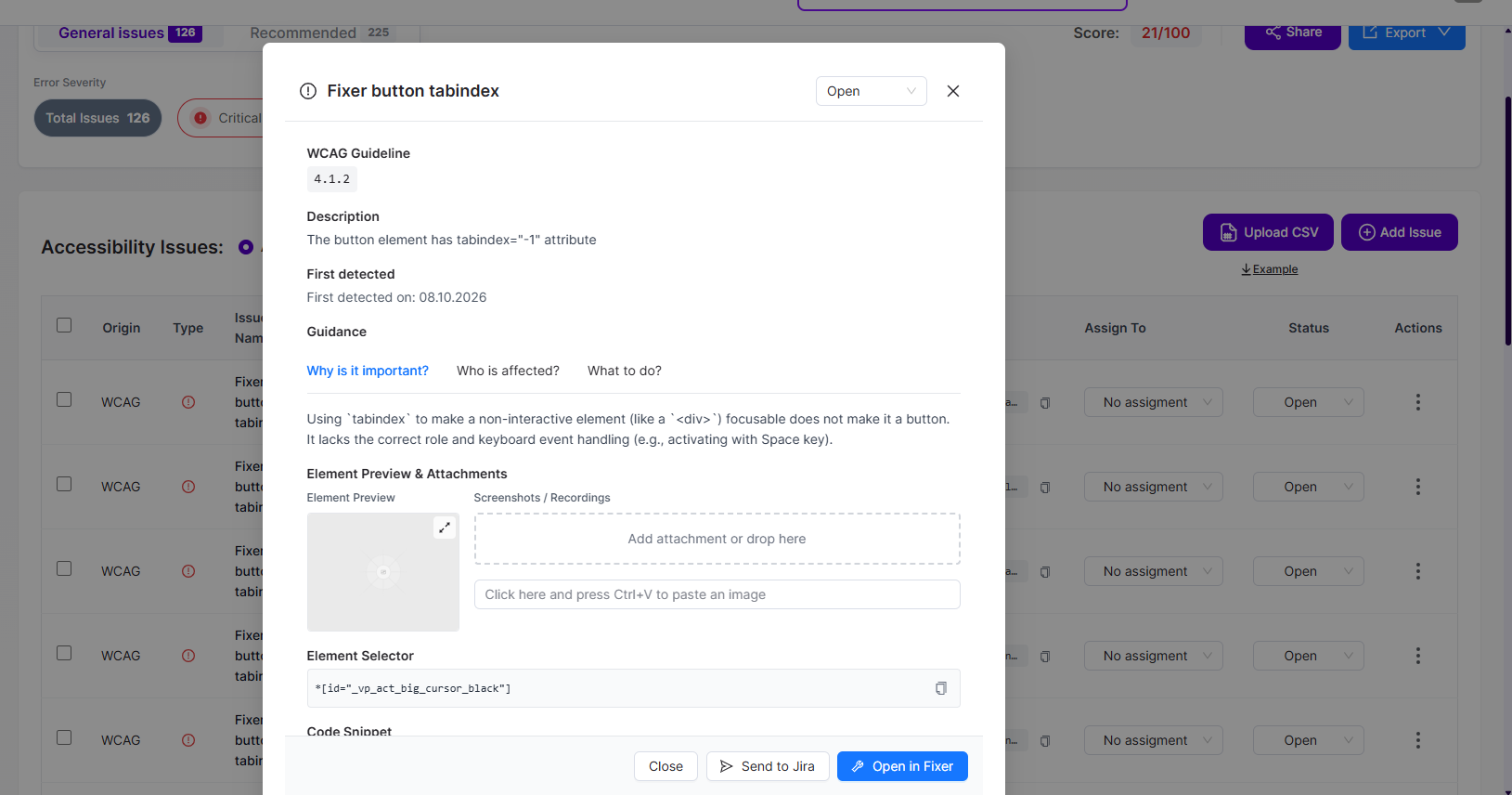
From Scanner findings, open the issue actions and select Open in Fixer. Review the element, selector, code snippet and description before creating a change.
Review the existing issue
The screenshot shows a Fixer panel with a finding summary and a prompt to confirm that a hidden element has been reviewed. If the element is hidden or cannot be highlighted, inspect whether the issue is actionable before changing focusability.
Advanced CSS and JavaScript
The interface includes Advanced CSS and Advanced JS areas, with preview/editor utilities. Prefer a minimal, maintainable change and avoid broad selectors that could affect unrelated elements.
Validate and roll back
Test keyboard access, focus, screen-reader behavior and dynamic states. Validate in a non-production environment when possible, and retain a way to disable or revert the remediation if regressions appear.
Product documentation note: Review permission settings, current account functionality and the actual result before applying changes to a customer website.